
Listock Theme Installation for nopCommerce 4.90
This guide will help you install and activate the Listock theme for nopCommerce 4.90. Once installed, you can set Listock as your store’s default theme through the nopCommerce Administration panel.
Installation Steps
- Download the Listock theme archive for nopCommerce - version 4.90.
- Log in to your nopCommerce Administration panel.
- Navigate to Configuration > Local plugins.
-
Click Upload plugin or theme and select the ZIP file you downloaded in Step 1.
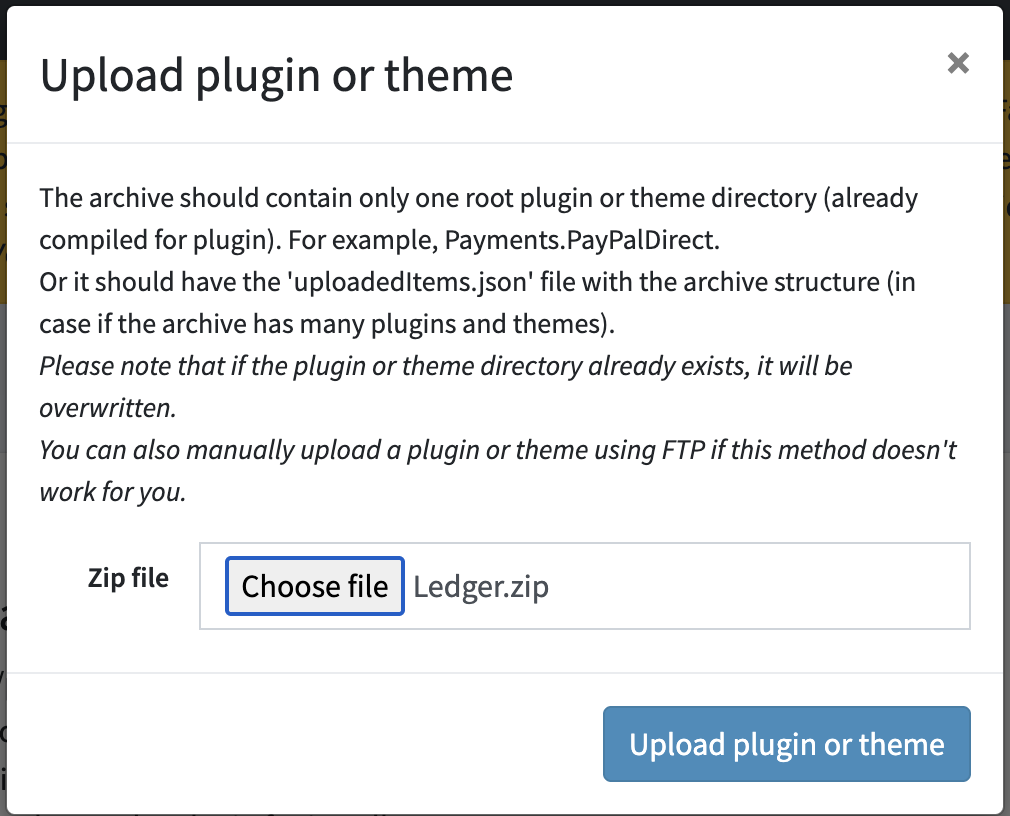
- Once uploaded, in the top panel, click Restart application to apply changes.
- Locate the Listock theme in the plugin list.
-
Click Install.

- After installation, in the top panel, click Restart application to apply changes again.
-
Navigate to Configuration > Settings > General settings.
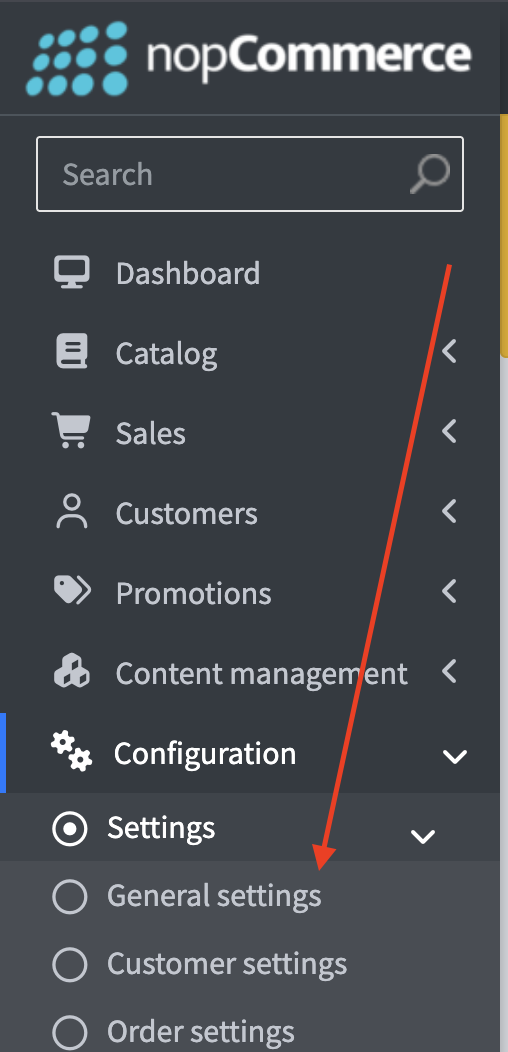
-
Under Default store theme, select Listock.
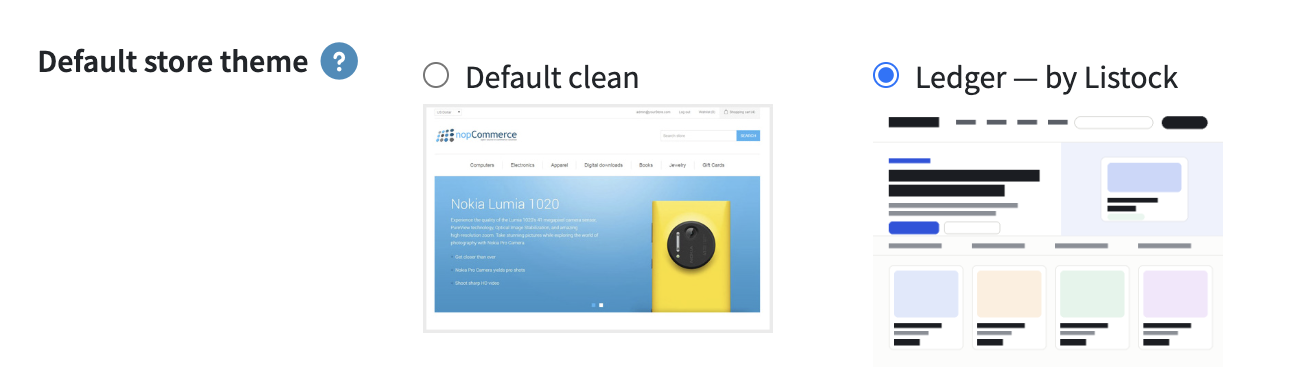
- Click Save.
After Integration
- The Listock theme will be set as the default theme for your nopCommerce 4.90 store.
- Open your storefront to verify that the theme is displayed correctly.
Need help? Contact our support team or use the live chat in your Listock admin panel.